Cactus

VoIP PBX Software - Shamrock Software GmbH

System Prerequisites
PC and operating system
LAN and Internet
External parties
Firewall configuration
Router configuration
ISDN adapters
IP phones and ATAs


Software Installation
First installation
Updates and upgrades
Uninstalling the software
Cactus Configuration
First steps
Network
SIP server
STUN/router
ISDN
SIP providers
Users/extensions
Call distribution
Nightly exceptions
Routing
Blocked numbers
Log files
Program start
The Cactus Server
Starting the server
The server window
Viewing the call log
The log file format
The server log


Using Phones
Configuring IP phones
Using IP telephones
Using an ISDN PBX
Multiple Cactus PBXs
Typical problems

Version 1.33 of 25 Oct 11 - License contract - German - Web: Shamrock Software
Use the Help button of the program to display the corresponding manual paragraph.
Note that the demo version limits the duration of calls to five minutes each.


System Prerequisites

Internet Cactus
PC as VoIP
PBX with
optional
ISDN card
IP phone   ISDN
PBX
Analogue p.
(e.g.
DSL,
cable)
     
IP phone ISDN phone
   
——————— Ext. ISDN

Cactus is a software-based Voice-over-IP PBX following the SIP standard RFC 3261. With an optional CAPI-2.0 compatible ISDN card a link to an existing ISDN PBX is possible, so calls can be accepted and made using analogue and ISDN phones, too.

PC and operating system

In general, all 32-bit Windows versions can be used. We recommend Windows 2000, XP, 2003 or Vista for stability reasons. Cactus can be used with 64-bit Windows versions, too, if the ISDN card comes with an appropriate CAPI driver.

The PC should be kept free of applications which frequently cause a high CPU load. Using other Shamrock programs like CapiCall, CapiFax or NetMail is not a problem.

We highly recommend to use an Uninterruptable Power Supply (UPS) for the Cactus PC, the DSL/cable modem/router, and -- if applicable -- for a conventional ISDN PBX.

LAN and Internet

Uplink
kbit/s
Calls
(G.711)
128
256
576
2000
1
3
6
24

We recommend to use a static LAN IP address for the Cactus server PC which then can be entered as registrar in the local IP phones. If this is not possible, the DHCP server must support DNS functions.

A conventional DSL or cable router or a RAS connection (with a RAS PPPoE driver, for instance) can be used as an Internet access. The table on the right shows how many simultaneous VoIP calls are possible at a time, depending on the uplink bandwidth of the Internet link. The G.711 codec is assumed which equals ISDN quality. There are some routers and also software utilities for traffic shaping, giving VoIP packets a higher priority than FTP or e-mail.

If the Internet provider disconnects its link once a day, this should happen during the night only. Cactus supports this by allowing to configure an inactivity time.

External parties

If external parties (in the Internet, i.e. outside of your local network) should be able to register as branches of your Cactus server, the server either needs a static IP address from your provider or a DynDNS service like www.dyndns.org where you can register a personal subdomain like myserver.dyndns.org, pointing to your dynamic public IP. Most cable/DSL routers already have the required DynDNS function, but there are software utilities for the same purpose, too. Please have a look at the support pages of your dynamic DNS provider. If you already have a DynDNS domain e.g. for SMTP or FTP, you can use the same one for the Cactus server.

For external users like home workers, your Cactus server looks like a normal SIP provider. The static IP address or the DynDNS domain must be configured as registrar in their IP phones or VoIP routers.

Of course Cactus can also connect to other publicly available SIP providers like Sipgate. You will need at least one account at SIP provider for this purpose. Its username and password needs only to be configured in Cactus, not in your local IP phones.

Firewall configuration

Protocol Local port Ext. port Direction Usage
UDP
UDP
UDP
5060
5062
6000...6239
any
any
any
both
both
both
SIP+STUN
SIP
RTP

In a firewall - either a software on the Cactus PC or a router with built-in firewall functions - the ports in the table on the right must be opened. In a software firewall, the usage can be limited to the Cactus server program SIP_PBX.EXE.

The RTP ports for the speech data results range from 6000 plus four times the maximum count of simultaneous calls minus one. For Cactus-S2M with a maximum of 60 channels the last port will be 6000+(4*60)-1 = 6239. For Cactus-Pro with 8 channels max. the last port is 6000+(4*8)-1 = 6031.

Router configuration

Cactus can be used with any NAT router (network address translation). A port forwarding of the UDP ports 5060 and 5062 should be configured to the IP address of the Cactus PC. The router documentation explains how this is done. No other special router settings are required. We recommend, however, not to use several routers in a line since this often breaks the network address translation and port forwarding.

For using external IP telephones outside of your local network as extensions (users), this forwarding is mandatory. Port 5062 is required only if a router with built-in VoIP functions is used which filters port 5060.

If your router has a function which rewrites IP addresses and ports in application packets (e.g. Application Level Gateway = ALG in Speedtouch routers), please disable it. Cactus requires that the payload of SIP packets is not changed by the router.

ISDN adapters

Using an ISDN adapter with Cactus is optional. It can be either connected to an external ISDN line, making ISDN calls possible for IP phones, or as a branch of an existing ISDN PBX allowing VoIP calls with conventional telephones.

The ISDN adapter can either be an internal PCI card (recommended!) but also an USB ISDN adapter or an ISDN router with LAN CAPI. A CAPI 2.0 driver is mandatory. Depending on the version (SoHo, Pro, S2M), Cactus supports up to 2, 8 or 60 ISDN channels. A cheap conventional ISDN card like AVM Fritz PCI is capable of 2 channels. For 8 channels, Shamrock offers a 4-port card (Primux 4S0). Cactus S2M can be used with a primary-rate ISDN card like Primux-1S2M (30 channels) or Primux-2S2M (60 channels). Please note that most cheap cards (like AVM Fritz) do not allow to use more than one adapter in one PC. When several cards are used, they must be from the same manufacturer since they share one hardware-specific driver (CAPI2032.DLL).

Cactus alternatively also supports special ISDN cards which can run in an NT mode (network termination), e.g. Primux 4S0 NT or Primux S2M NT. An ISDN telephone or an external line of an ISDN PBX can be directly connected to such a card. A MSN must be configured in the telephone or ISDN PBX for which an ISDN-NT call routing exists in Cactus.

ISDN adapters typically will not work in a virtual machine environment since virtualization software does not contain the necessary code to resolve access conflicts to the ISDN hardware from multiple operating system instances. A network CAPI driver accessing a non-virtualized PC with an ISDN card or an ISDN router may be a workaround.

IP phones and ATAs

Cactus can be used with a variety of SIP-compatible IP phones, softphones and ATAs (analogue telephone adapters). Basic configuration hints can be found in this manual. Please note that not all of these devices support attended call transfers. If you are having any problems with a specific device, please contact Shamrock for further evaluation.


Software Installation

There are three Cactus versions: SoHo, Pro und S2M, please see the Shamrock web page for differences. A demo version is available, too; it is functionally identical with the SoHo version but it limits the duration of calls to five minutes each.

Important: In Windows Vista file access to the Program Files folder and to the HKLM registry branch are virtualized, i.e. different programs and users see a different content. If Cactus runs as a service in system context, it would not see the same configuration data as entered in user context. Furthermore, network access to the Program Files folder is restricted so that configuration changes would not be possible from other workstations. This is why the Cactus Setup program uses C:\Shamrock\Cactus as default.

First installation

You typically need administrative privileges to install software.

First of all, please start the configuration programs to enter all required settings before starting the Cactus server later.

Updates and upgrades

Before installing an update, a full version over a demo, or an upgrade e.g. from Cactus-SoHo to -Pro, please end all Cactus programs on the server and on other workstations. If the Cactus server is running as a service, end it using the Services applet of the Windows control panel (and restart it there after the update).

Then follow the same steps as described above for the first installation. Keep the destination path in the Setup program so that your existing configuration is adopted. We explicitly discourage any downgrade to an earlier software version to avoid any possible incompatibility of configuration data.

Note: The demo version cannot be used for updating a full version.
You would end up with a demo version on your PC. Please use the Shamrock ordering form for requesting an update.

Uninstalling the software

For uninstalling Cactus, you should be logged in as the same Windows user who installed the software. Please end all Cactus programs on the server and on other workstations. If the Cactus server is running as a service, end it in the Services applet of the Windows Control Panel and remove the service by entering SIP_PBX.exe -u at the command line.

Then go to Software in the Windows Control Panel and click on Cactus to remove the program. All program files, configuration data, log files and registry data will be removed.


Cactus Configuration

Cactus Configuration
Network
SIP server
STUN
ISDN
SIP providers
Users
Call distribut.
Routing        
Blocked no.
Log files
 
Dest... Routing Descrip...
0
9
0112


...
SIP1
SIP1
ISDN


...
Business
Private
Fire


...
New

Edit

Delete
Help Cancel OK

First steps

You will find the configuration program in the Windows Start menu at Programs/Cactus. Typically the following initial settings are required:

  1. Enter the name and country/area code of your server at SIP server.
  2. If using a DSL/cable router, enter the STUN server of your main SIP provider.
  3. If using an ISDN card, enter its number and the call distribution for it.
  4. Enter the data of one or more SIP providers, e.g. Sipgate.
  5. Enter the branches and configure the phones accordingly.
  6. Enter an asterisk * in the call distribution list to configure which telephones (SIP or ISDN/conventional) should ring for external calls.
  7. Configure the routing at least for 0 as the external access digit (escape code) and also for the first digits of branches and group numbers of your ISDN PBX.
  8. If you encounter any problems during operation, please check the server window and the log file for further diagnosis.

The configuration program SIP_CFG.exe can also be launched from other workstations using the Windows network neighbourhood if the server PC's hard disk is available as a network share. You can use the Windows NTFS privileges to limit access to it. (If you receive a Windows error message that the source could not be verified, add the server's computer name as trustworthy site in the Microsoft Internet Explorer settings.)

The following paragraphs of this manual are also accessible with the Help buttons of the corresponding configuration dialogues.

Network

CIDR to IP range calculator
CIDR:
IP range:

Normally it is not required to change the network settings. Changes require restarting the Cactus server program, so it is useful not to run the server as a service but as a normal application while experimenting with the settings.

SIP server

This configuration dialogue controls the communication between IP telephones and the Cactus server with the Session Initiation Protocol SIP.

STUN/router

An external STUN server (Simple traversal of UDP over NAT) is used by the Cactus server if the Internet access does not use Windows RAS but a NAT router (Network Address Translation) in order to find out its own public IP address:

If no router is used but Windows RAS (PPPoE driver or similar), the field for the server address should be empty to avoid unnecessary traffic. In this case, Cactus will retrieve the public IP address from the RAS driver once per minute.

If you have a static external IP address, enter it in the field "Server address" and leave the "Server port" empty.

ISDN

The ISDN configuration is required only if an ISDN adapter with a CAPI 2.0 driver is present.

The following parameters are available for the entries in the MSN list (multiple subscriber number):

Please note the following:

  1. Do not use external MSNs to Cactus MSNs in the ISDN PBX if they are configured as "VoIP destinations entered with DTMF". Alien users could abuse your server for expensive calls.
  2. The number of MSNs does not directly correspond with the number of simultaneous calls. However, in some ISDN PBXs only one call is possible over one MSN. To avoid problems, Cactus uses MSNs alternatively if an external access digit is configured for ISDN. If not, only the first configured MSN will be used.
  3. A special NT-mode ISDN controller (network termination) is displayed if present, but no configuration is required.

SIP providers

You can configure up to nine SIP providers which will used for external connections. When you click on [New], default parameters of some common providers will be inserted. We recommend not to create multiple accounts for using multiple numbers but - if the provider supports it - add numbers to an existing account; otherwise you will get in trouble if you need more than nine numbers.

Users/Extensions

Sample numbering plan
0...
112
12-29
3...
4...
5...
6-7
8...
9...
*0-*9
**...
External prefix
Fire
Short access codes
Analogue branches
ISDN branches
IP telephones
Reserved
Project no. prefix
Private call prefix
Provider selection
Programming

Here you can define the branch numbers, usernames and passwords of your Cactus PBX. No entries are required here if you only intend to use conventional telephones connected to an existing ISDN PBX.

Accounts

Note: If the SIP server configuration does not require a password for authentication in the local-area network, an IP phone can register with any branch number even if it is not configured here (not recommended!).

Diversions

Diversion notes:

  1. The redirection is ignored if the calling party is identical to the diversion destination (secretary function).
  2. If the destination is a mobile phone, please make sure with your network provider that the call is not connected unless it is really accepted by the called person; otherwise the other telephones in a calling group would no longer ring.
  3. Disabling a diversion type does not clear the destination number field, which makes it easy to re-activate it later on.
  4. Many SIP telephones have a "Do not disturb" button, or allow to reject a call. These functions will typically answer calls with a "Busy" status.
  5. Some SIP telephones have diversion options of their own; however, they will not work for external callers or when the phone is switched off. This is why the Cactus diversion function should be preferred. For the same reason, the seconds for a time-based diversion should be set to a higher value in the telephone than in Cactus (e.g. Snom).
  6. When using Cactus for diverting calls from and to external numbers, the caller pays for the call to Cactus only, and you pay for the outgoing connection from Cactus to the destination number. As a result, you will not get rich by diverting calls to a 0900 premium number owned by you, but poor.
  7. Please take into account that an ISDN bus has 2 channels only! A call from a local ISDN phone on the same bus as Cactus cannot be diverted to an external ISDN number because this would require 3 channels.

Privileges

The following user privileges can be enabled or disabled selectively:

Call distribution

The call distribution defines which phones should ring for incoming and outgoing calls or define speed-dial numbers. It is even possible for several phones to ring in parallel. When creating a new rule, the following fields are available:

The call distribution can als be used for speed dial numbers. For instance, you might create a short code 22 as an alias for *150000. This will select *1 for Sipgate as provider index 1 and 50000 for Sipgate's voice mailbox.

Please note:

  1. The distribution of incoming ISDN calls to IP numbers is not defined here but in the ISDN configuration.
  2. You must also enter the number(s) here which you got from your SIP provider(s). The local branch numbers which should ring are entered as destinations.
  3. Short-access codes can be specified here, too, but please make sure that these do not conflict with existing internal or external numbers.
  4. The call distribution is used before the routing rules. If you have a call distribution rule e.g. from 112 to 0112, you need 0112 (not 112) in the routing rule. You can also enter e.g. *0 in front of a destination number to override a default provider given in a user configuration by ISDN; in this sample, the destination would be *00112.
  5. If an asterisk and a provider index is dialled (e.g. *1) for using a specific provider, the call distribution is normally ignored so that it is possible to dial user numbers of a given SIP provider. However, you might also enter an asterisk at the beginning of a called number in the call distribution to reroute it.
  6. Complete numbers are required for the called number and all destinations (while the routing rules can use abbreviate numbers).
  7. Cell phone numbers can be used as destinations. However, if conventional phones should ring at the same time, please make sure that the call is not accepted on the mobile number when you are out of range or if the cell phone is out of service.
  8. For ringing several ISDN branches in parallel, define a group number in the ISDN PBX and configure it as one destination in Cactus to avoid wasting ISDN channels.
  9. Call distribution rules are used before any diversions.

Nightly exceptions

It is possible to enter call distribution exceptions here which are valid during a specified time of day and optionally also 24 hours for Saturday and/or Sunday and national holidays, typically outside of your office hours. The form of these exceptions is the same as for the normal call distribution rules. If no matching rule is found within these, the normal distribution is used. - Some tips:

  1. These rules override any diversions.
  2. If you do not want to be disturbed during the night, simply leave the destination field empty, or enter the extension of an automatic answering machine. This could also be the ISDN number of a Shamrock CapiCall voice mailbox.
  3. When you are on vacation, temporarily enter e.g. 08:00 to 07:59 as night time until you are back.
  4. National holidays are configured in a file FEIERTAG.INI. If Shamrock CapiCall is installed on the same PC, the content of this file can be replaced by a single line pointing to the holiday list in the CapiCall folder, e.g. c:\capicall\feiertag.ini, so only one file has to be edited later.
  5. Clicking the [Holidays] button on a different network workstation does work if you have started the configuration program from a mapped network drive, but not using a UNC path like \\server\c\...

Routing

The routing configuration defines which SIP/ISDN provider should be used for given country codes, area codes or special numbers. To be able to make external calls, at least a routing for the external escape code 0 must be defined here.

If you are using an ISDN adapter connected as an internal branch of an ISDN PBX, enter rules for all possible ISDN branch numbers with "ISDN" as routing so that all ISDN branches can be called from IP telephones and SIP providers, too. For instance, if the telephones of the ISDN PBX are in the range 31 to 38 and 41 to 48 and group numbers are in the range 301 to 309, enter one rule from "3" to ISDN and also one from "4" to ISDN.

Please note:

  1. The routing rules are not used if an asterisk and a provider number is used in front of the destination number. For instance, to dial the number 765 4321 of SIP provider 1, enter *1 765 4321 at the telephone.
  2. The routing rules are not used either if a specific SIP account or ISDN MSN is preset in the user configuration.

Blocked numbers

You can block specific numbers or area codes for incoming and outgoing calls, e.g. to avoid expensive 0900 connections. Click on [New] to enter a number:

Important notes:

  1. Many SIP providers block premium numbers themselves, e.g. 0900.
  2. The specified numbers are blocked regardless of how the external access is dialled (0, 9, *0 to *9).
  3. If your country allows call-by-call provider selection, make sure that you also block the call-by-call prefix codes to avoid that users can bypass the blocked numbers.

Log files

This dialogue allows to define what calls are written into the log. Default is OFF for all so that all calls are written:

Project numbers are frequently used to log the time used for specific customers or projects. The corresponding settings are available if the automatic external access (see SIP server) is disabled:

For example, if you want to use the project number 12 for dialling an external business call to 02012345, enter this on your phone (assuming that the project number prefix is 8):
8 12 0 02012345

Note that the external access digit 0 is entered after the project number. This way even internal calls can contain a project number.

For analyzing possible problems, e.g. regarding the communication with a specific IP telephone or with a SIP provider, there is another option:

If the Cactus program is terminated abnormally (e.g. power outage, PC with Cactus as a service is shut down, or crash), an existing file SIP_TRACE.TXT will be renamed to SIP_TRACE_PREV.TXT during the next restart. If SIP_TRACE_PREV.TXT already exists in this situation, it will be overwritten.

Program start

Cactus can be launched as a Windows service so that is available even if no user is logged in. We recommend to do this only after your configuration is stable and everything is working since newer Windows versions (Vista and later) do not allow to display a service as a symbol in the system tray or to open it as a window; the activities can only be seen in the log files. Furthermore some configuration changes (like SIP port) require a restart. - These buttons control the operation:

If Cactus is launched from a network drive (e.g. NAS device) or in a remote session, you will have to register the service manually. Open a command line as administrator and enter SIP_PBX.exe -i in the Cactus program folder to register the service. Then open the Services applet in the Windows Control Panel and start the Cactus service. Let the desktop option enabled so that the Cactus symbol is available in the system tray for opening the server window. If you want to unregister the service later, enter SIP_PBX -u in an administrator command line window.

Please note: When run as a service, Cactus must not be configured as a Startup link and cannot be controlled by the AppDog watchdog utility from Shamrock either.

On the same configuration page there is also a Language selection box (English or German). The selected language not only applies to the configuration program itself but also to the Cactus server, to the log viewer, and to any other multi-lingual programs from Shamrock Software on the same PC.


The Cactus Server

Starting the server

Please note that it may take a few minutes after starting the server until the IP telephones have registered and you can use them for calls.

Startup link, AppDog, service

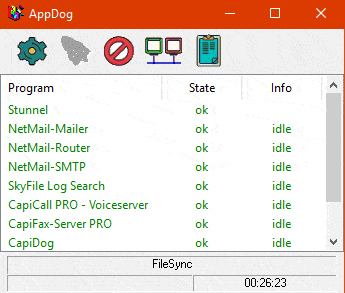
We recommend to launch the Cactus server automatically using a Startup link to SIP_PBX.exe in the Windows menu Start/Programs. Alternatively, you can also use the free AppDog utility from Shamrock to launch and monitor the Cactus server. When your configuration is complete and stable, you can run the Cactus server as a Windows service so that it is available even with no user logged in.

Important: During your initial tests the server should not run as a service because some configuraton changes require a restart which is more cumbersome for a service.

The server window

Cactus PBX
File Help
SIP providers
Current registration status
Actions
Call-relevant
information like
dialling, SIP and
ISDN calls, etc.
 
Users
Registered SIP phones
Connections
Currently active calls
Debug information
SIP and CAPI interface
trace (only in debug mode)
SIP data
SIP packet for the
selected trace line

The server window shows the status of SIP provider registrations, currently registered IP telephones, current connections and other relevant information. (In all current Windows versions it is only visible if Cactus is run as a normal application and not as a service!)

The window panes use the following colours for displaying status information:

The File menu of the server window contains these items:

The Help menu allows to display this manual and also the current software version.

Viewing the call log

Cactus Log
File Help
Date Time Dur...Ring Caller Type Ri...Con...Info
...

SIP_LOG.exe can be launched on the server of from other workstations as well if the server hard disk is shared in the network. It displays a decoded version of the log file. You can change the window size by dragging the border with the mouse. The following columns are displayed:

The information in the "Flags" field of the log file is used to display the lines in different colours:

The log file format

Calls handled by the Cactus server are logged in a monthly file PBXyymm.LOG with CSV-formatted lines (comma-separated values, yy=year, mm=month, e.g. PBX0702.LOG). You can configure which calls are logged. The file can also be read by other programs like Microsoft Excel. If you develop software on your own, please make sure that your read access does not block the write access from the Cactus server.

Line format

Each line uses the following format with commas between all fields:
Date, Time, Duration, Ring, Flags, Caller, Type, Ringing, Connected, Info, Project number
The parameters have the following meaning:

  1. Date: The end of the call or connection: dd.mm.yy.
  2. Time: The end of the call or connection: hh:mm:ss.
  3. Duration: The duration of the connection in seconds (if successful).
  4. Ring: Shows how long the telephone was ringing before the call was answered or dropped.
  5. Flags: O=outbound, i=inbound, P=private, m=manual provider selection.
  6. Caller: The calling number as transmitted by the provider.
  7. Type: Source>destination; bus:MSN or "NT" for ISDN, "i" for internal branch, or number@registrar.
  8. Ringing: The called number(s), may be several for a group call, delimited by semicolons.
  9. Connected: The number eventually accepting the call.
  10. Info: Either a 3-digit SIP error code, or a 4-digit ISDN CAPI error, or the codecs at Caller>Called, e.g.
    0=G.711A, 2=G.726, 3=GSM, 8=G.711µ, 97=iLBC, 110=Speex.
  11. Project number: The project number used for this call if one has been entered.

Please note the following conventions:

Here is a sample of an outgoing external call lasting 62.7 minutes and 1.7 seconds where the branch 52 calls the ISDN number 08912345 using the MSN 43 on bus 1 with the project number 4711:
25.03.2007,11:59:15,62:01.7,12.8,O,52,i>1:43,08912345,08912345,8>8,4711

The following line shows an incoming call from 08912345 on ISDN bus 3, MSN 48. The IP branches 52 and 57 ring for three seconds until 52 accepts the call:
25.03.2007,11:51:02,1:12.2,3.0,I,08912345,3:48>i,52;57,52,8>8,

Error codes

The "Info" field of the log file can contain 3-digit SIP or 4-digit ISDN/CAPI error codes. If several phones are called as a group, only the last error is logged. The following table shows the most typical codes.

SIP error codes
400 Syntax error
404 Not found
407 Proxy authorization required
408 Timeout
480 Temporarily unavailable
481 Connection does not exist
482 Loop detected
484 Incomplete address
486 Busy here
487 Aborted or finished
488 Not possible here
501 Not implemented
503 Service not available
504 Gateway timeout
ISDN error codes
3301 Cable or hardware problem
3002 Wrong B2 protocol, e.g. DSS1 instead of NI1
3303 Layer-3 protocol error or timeout
3400, 3490, 3492 No reply
34A2 No B channel available
3481 Own MSN or destination number invalid
3491 Busy
3492 No answer
3493 No one accepts the call
3495 Call rejected
3496 Number has changed
349C Number format illegal or wrong MSN
34A2 No channel available
34D8 Wrong destination number

The server log

SIP_PBX.TXT is another log file written by the Cactus server. It contains all server-relevant events like program start/end, public IP detection, and problems with registrations. This log will be deleted automatically when it reaches a size of 100 KB. It can be viewed in the File menu of the call log viewer.

The server log also shows if there are new messages in the voice mailbox of a SIP provider. To call the mailbox from a telephone, a short code in the call distribution list is useful.

Repeatedly occurring errors, new voice messages at SIP providers and incoming calls can also be displayed on other LAN workstations if they run the Popup program which comes with Shamrock's NetMail software. If Cactus is installed on the NetMail gateway PC, it uses the popup destination address for system messages in the gateway configuration, otherwise the messages are sent to * (all). In addition, the popup program also imposes a status box showing all currently active calls.


Using Phones

0123456789
^ R -
1 2 3
4 5 6
7 8 9
* 0 #

Configuring IP phones

You must configure your IP phones properly before they can be used. Most phones have a web interface. Typically the following settings are available:

Using IP telephones

Please contact the manual of your IP phone(s) how to dial a number. Often the # key must be pressed after the number.

Incoming and outgoing calls

Programming diversions

If programming diversions at the telephone is allowed, the following key sequences can be used for it which are similar to the ones being standardized for GSM cell phones:

Important notes for programming diversions:

  1. After entering the sequence you have to lift the headset or press the dial key on the phone. The pound/hash key # finishes the entry for some telephones (e.g. Grandstream BT100) and is not transmitted itself. It is therefore optional if the telephone uses a different key for dialling. Consequently **002 is sufficient for disabling all diversions, for instance.
  2. After a successful programming the telephone shows either "487" (if it can display status codes only) or "487 Diversion OK". Otherwise an error code is displayed depending on the cause, typically 403 = forbidden or 400 = bad format.
  3. To disable the diversion, simply leave the Number field empty (e.g. **21*# or even shorter **21#). You can see the current status in the user configuration.
  4. A user who is the destination of a diversion can call the redirected telephone without being diverted again (secretary function).

Using an ISDN PBX

If the Cactus PC is equipped with an ISDN adapter, it can be used as a VoIP/ISDN gateway. Telephones connected to a conventional ISDN PBX can then be used for incoming and outgoing SIP calls.

More hints for using analogue and ISDN phones:

  1. It is useful to program a short-access key on your phone for dialling a Cactus ISDN MSN.
  2. It is not mandatory to press # behind the destination number. You can simply wait a few seconds alternatively. The timeout can be programmed in the ISDN settings of Cactus.
  3. If an extension of an ISDN PBX rings during an incoming SIP call, not the SIP caller number is displayed but the internal MSN of the ISDN card used by Cactus. It is technically impossible to override this.
  4. Programming diversions (e.g. on busy) is usually done at the local ISDN PBX.

Multiple Cactus PBXs

Location 1
server1.dyndns.org
  Location 2
server2.dyndns.org
Branch 51 Cactus 1 Cactus 2 Branch 61
  —Internet—  
Branch 52   Branch 62

You can link multiple Cactus servers so that their branches can dial each other directly. To keep things simple, the first digits of the branch numbers of the different locations should differ. Furthermore, you will either need a static IP address or a DynDNS domain for each location.

You must buy a Cactus license for each location since one license is valid for one server only. - The following example assumes a configuration with two locations. Please follow these steps:

Location 1
  1. Make sure that all local branch numbers start with 5.
  2. Configure a new branch 50.
  3. Enter the data of the Cactus-2 branch 60 as SIP index 9: Username = 60, Registrar = server2.dyndns.org.
  4. Create a route from 6 to SIP index 9.
Location 2
  1. Make sure that all local branch numbers start with 6.
  2. Configure a new branch 60.
  3. Enter the data of the Cactus-1 branch 50 as SIP index 9: Username = 50, Registrar = server1.dyndns.org.
  4. Create a route from 5 to SIP index 9.

Now e.g. branch 51 at Cactus 1 can simply dial 61 even though it is at Cactus 2. - Notes:

  1. If an ISDN PBX is available at both locations and if there are conflicts with their branch numbers (e.g. 31 exists at both locations), you can create a call distribution rule e.g. from 531 to 31 at location 1, and from 631 to 531 at location 2.
  2. Even if theoretically possible, you should not use Cactus 2 for external calls from Cactus 1 and vice versa. It is much more efficient to have different SIP provider accounts at both locations.

Typical problems

Outbound calls do not work.
Please make sure that you have configured your own country code correctly, e.g. 0044 for UK. Also note that you have to dial e.g. 00033... instead of 0033 for France: An additional 0 is required for external calls if you did not enable the automatic external access. Otherwise Cactus would think that you have dialled a national number and adds the international prefix. If you have configured a branch-specific CLIR number, it must be supported by the provider; check if it works if this field is empty.

No phone is ringing when a call comes in.
Please check what is displayed in the upper right corner of the Cactus window. If "(?)" is shown behind the called number, no call distribution rule was found. Please create a rule for the displayed number, or enter an asterisk * as a wildcard for the called number. If a phone connected to an ISDN PBX should ring, please make sure that its first digit exists in the routing and at least one ISDN MSN is configured for outgoing business calls.

I hear an annoying echo.
Since IP telephony uses data buffers, a speech delay of a fraction of a second cannot be avoided. If microphone and speaker are not decoupled well, this may result in an echo. Often reducing the volume or the microphone sensitivity helps. But it is always best to use a headset with softphones, or at least a headphone instead of a speaker. If a conventional ISDN or SIP telephone is used, the speakerphone mode should be enabled only if the phone has a built-in echo cancellation. In general, ISDN and SIP phones cause less echo problems than analogue ones.

I cannot dial a number with an asterisk in front of it.
Some ISDN PBXs require extensions to be dialled with an asterisk * in front of them. But Cactus interprets an asterisk in the first place as a provider selection, and two asterisks are reserved for programming diversions. So instead of dialling e.g. *31 for the extension 31, please enter *0*31 at your SIP phone: *0 selects ISDN as outgoing line, and the following *31 is then transferred to the ISDN PBX. An alternative might be to disable the automatic external access in your ISDN PBX for the MSNs used by Cactus. - Similarly it is possible to dial a sequence starting with * at a SIP provider if you prepend it with an asterisk and the provider number.

Can I use a GSM gateway box?
A GSM-ISDN gateway can be used with Cactus so that calls to and from mobile numbers are much cheapter because they are network-internal calls. You will need a GSM box which behaves like an ISDN NT for this purpose, e.g. a 2N BRI Lite. Connect it to one reserved outlet of the ISDN card in the Cactus PC and define its MSN and controller number as "Special assignment" in the ISDN settings. Then configure a proper routing for the mobile area code(s) to "ISDN special".


License contract

The owner of a Cactus license is authorized to install and run the server software on one PC. The other modules may be started from any other PC within a local network if they are loaded from the same server PC.

Distribution of the demo version on other web sites than the ones owned by Shamrock or on CD ROMs is prohibited. Shamrock Software is the author of the program and of this manual and reserves all rights, including copyright regulations.

Shamrock Software grants the right to use the software but does not transfer ownership. This right ends if the invoice is not paid in time or if any term of this license agreement is violated by the user.

You may not use this software in any circumstances where there is any risk that failure of this software might result in a physical injury or loss of life. Any such use is entirely at your own risk, and you agree to indemnify Shamrock Software from any claims relating to such unauthorized use.

© Shamrock Software GmbH